
How to Lock a Folder on a Laptop or PC with a Password: 5 Free Methods
An IObit guide explains five free ways to lock a folder on a laptop or PC with a password or restricted access. These include built-in Windows tools such as BitLocker and EFS, built-in Office document encryption, and free tools like 7-Zip and WinRAR.
 IObit
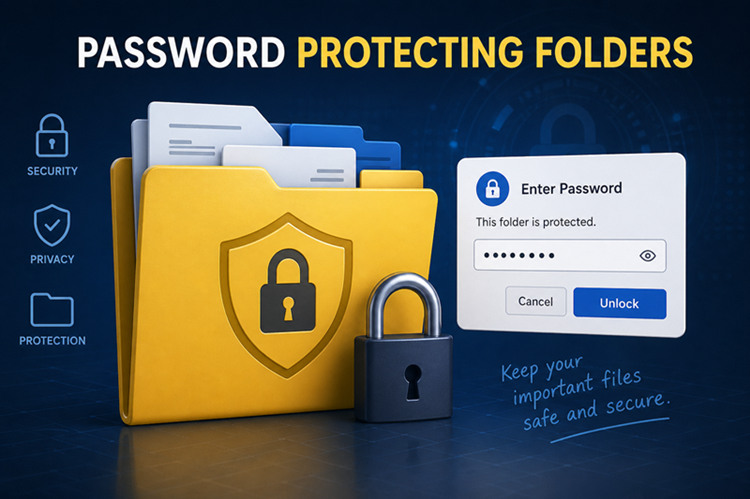
IObitWindows does not natively let users password-protect a single folder, according to a guide published on the IObit blog. The guide covers five free methods to lock folders and protect private documents, business files and sensitive backups, with or without a password. This matters when a PC or laptop is shared with family members, coworkers or others, where private files could be exposed at any time.
Built-in Windows methods
Windows offers several built-in features that can secure files without third-party software, but the guide notes these tools can be limited, time-consuming or inconvenient for everyday use.
- BitLocker: a default program designed to lock an entire drive with a password. It does not directly lock a single folder. Advanced users often combine BitLocker with a Virtual Hard Disk (VHD) to create a secure, password-protected container that acts like a locked folder.
- EFS (Encrypting File System): encrypts files and folders so they remain visible to other users, but only the owner's Windows account can open or modify them. It requires no extra password setup, but it provides no real protection if multiple people share the same Windows account, and if Windows is reinstalled without backing up the encryption certificate, access to encrypted files may be lost permanently.
- Compressing files into a password-protected archive using WinRAR or built-in ZIP compression, which requires extra steps and extraction before use.
- Microsoft Office documents with built-in encryption, such as Excel and PowerPoint, where a password can be added directly to the file.
- Creating an encrypted image on a MacBook using Disk Utility.
Locking via BitLocker
Before the tutorial, the guide clarifies that BitLocker does not lock individual folders; it locks a drive such as C: with a password.
- Open Disk Management, then Action, then Create VHD.
- Choose a local disk to store files in the VHD.
- Set the maximum size of the VHD, for example 2GB, and set the format and hard disk type.
- Initialize the VHD.
- Open BitLocker, locate the target virtual hard disk, lock it and set a password.
The guide notes the message 'Compatible TPM cannot be found'. Three scenarios are described: TPM is on the motherboard but not activated, which is common; TPM is not on the motherboard, which is rare; or the system is too old to support TPM, which is very rare. To address it: restart the PC, press Delete or F2 for laptop users to enter BIOS, follow Advanced > Trusted Computing > Security Device Support > Enabled, save changes and restart, then open Win+R to check whether TPM is activated.
Locking via EFS, WinRAR and Office
To lock a folder with EFS in three steps: right-click the folder and select Properties, click Advanced in the pop-up window, then check the box reading 'Encrypt contents to secure data.'
To lock with 7-Zip, right-click the folder, choose 'Add to archive...', set a password and click OK, so anyone attempting to open the zipped file must enter the preset password. The guide points out drawbacks of the compression method: frequent zipping and unzipping can damage files; locked documents cannot be edited directly; one broken file can harm the whole zipped document; and huge files such as movies and novels take a long time to zip and unzip.
To lock an Excel document: open the file, click File > Info, then Protect Workbook > Encrypt with Password, type a unique password and click OK, then retype the password and click OK. Drawbacks include that the document remains on the desktop with its file name, size, format and metadata visible; the file can be deleted or copied; only one document can be locked at a time rather than a folder; and the method is not handy for document transmission.
IObit's Safe Folder feature
The guide describes IObit as a software developer with over 20 years of experience, and says Advanced SystemCare includes a folder protection feature called Safe Folder that lets users hide folders completely, restrict access and prevent unauthorized users from opening files. One advantage is that it can block other programs from reading locked folders, something Windows' built-in tools do not fully offer according to the source.
The source states the Safe Folder feature is paid, and that a single license includes a full suite of tools for PC cleanup, performance optimization, ad removal, anti-spyware and system protection.
Steps to lock folders with the software include: download IObit SystemCare for free; switch to the Settings tab and choose how to lock folders by denying read access, denying write access or hiding folders from Explorer and other programs, then set a password; drag and drop to lock a folder; and hit Add to lock more folders.
The guide concludes that the four built-in Windows methods are free but often limited in security and convenience, especially when files are frequently accessed or edited, while IObit Advanced SystemCare brings these methods together through its Safe Folder feature with no learning curve.
Original publication date
April 29, 2026